As the world becomes increasingly digital, the need for secure communication has never been more pressing. One of the most widely used email clients, Microsoft Outlook, offers various methods to encrypt emails, ensuring that sensitive information remains confidential. In this article, we will delve into the realm of email encryption, exploring the intricacies of secure communication and providing a comprehensive guide on how to encrypt Outlook emails.
Key Points
- Understanding the importance of email encryption in maintaining confidentiality and security
- Utilizing built-in encryption features in Outlook, such as S/MIME and Office 365 Message Encryption
- Employing third-party add-ins and plugins to enhance email encryption capabilities
- Implementing best practices for secure email communication, including password protection and two-factor authentication
- Exploring alternative email encryption methods, such as PGP and TLS
Why Encrypt Outlook Email?
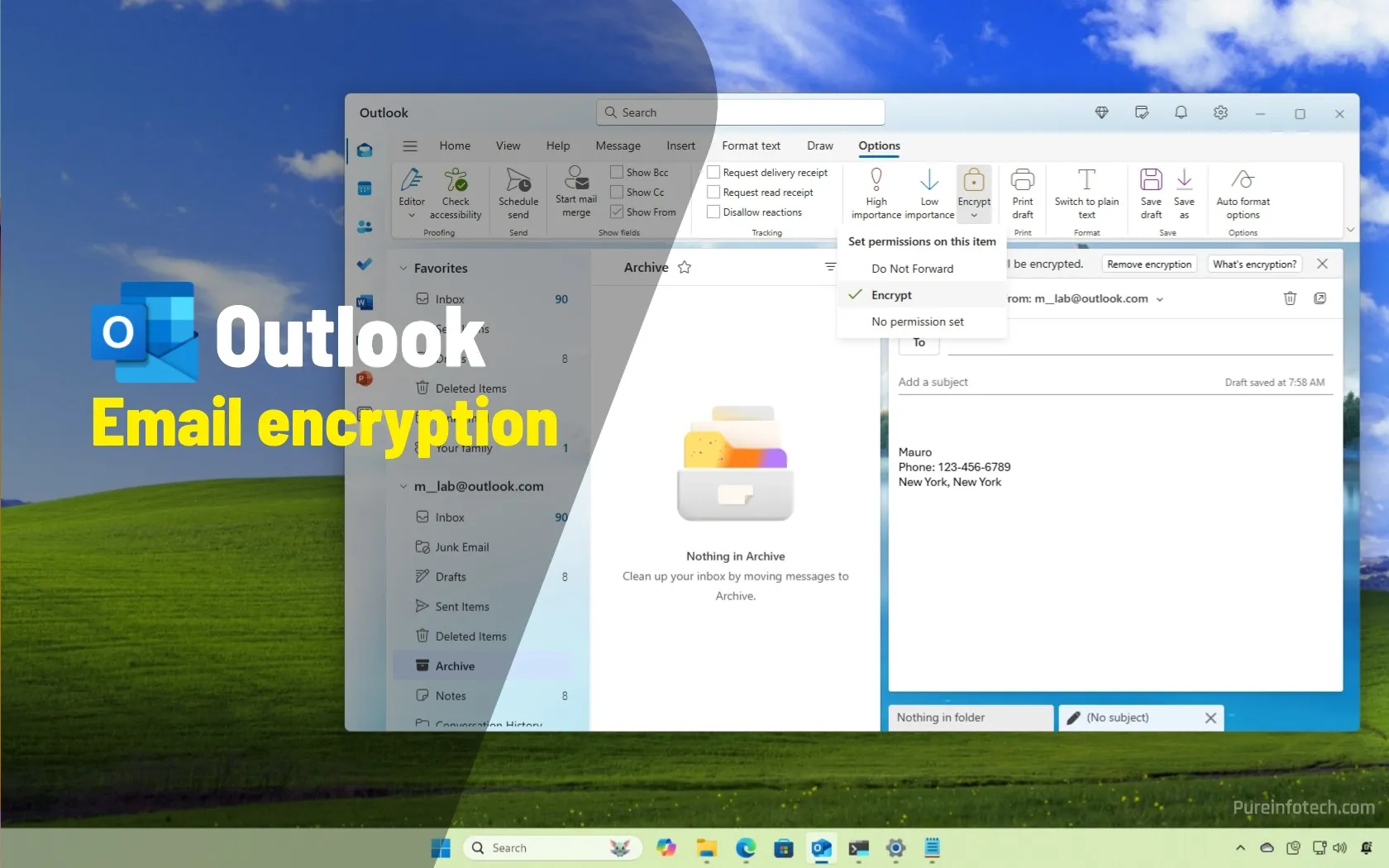
Email encryption is the process of converting plaintext into unreadable ciphertext to protect it from unauthorized access. In today’s digital landscape, where cyber threats and data breaches are rampant, encrypting emails is crucial for maintaining confidentiality and security. By encrypting Outlook emails, individuals and organizations can safeguard sensitive information, such as financial data, personal identifiable information, and confidential business communications.
Method 1: S/MIME Encryption
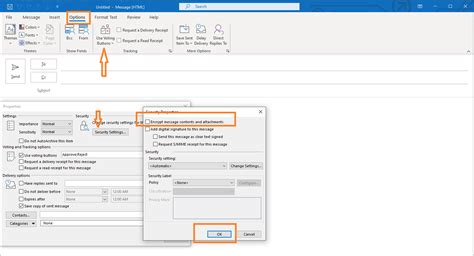
S/MIME (Secure/Multipurpose Internet Mail Extensions) is a widely used encryption standard that enables secure email communication. To use S/MIME encryption in Outlook, follow these steps:
- Obtain a digital certificate from a trusted certificate authority (CA)
- Install the digital certificate on your computer
- Configure Outlook to use the digital certificate for encryption
- Compose an email and select the encrypted option
S/MIME encryption ensures that only the intended recipient, with the corresponding private key, can decrypt and read the email.
Method 2: Office 365 Message Encryption
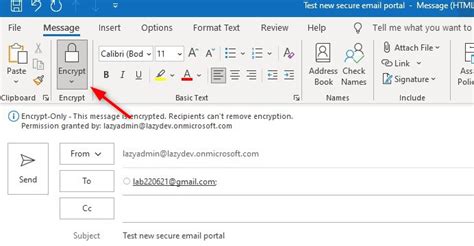
Office 365 Message Encryption is a built-in feature that allows users to send encrypted emails to anyone, regardless of their email provider. To use Office 365 Message Encryption, follow these steps:
- Enable the Office 365 Message Encryption feature in the Office 365 admin center
- Compose an email and select the encrypted option
- Choose the encryption template and set the encryption policies
Office 365 Message Encryption provides an additional layer of security, enabling users to send encrypted emails with ease.
Method 3: Third-Party Add-Ins and Plugins
Several third-party add-ins and plugins are available to enhance Outlook’s email encryption capabilities. Some popular options include:
- Virtru: A comprehensive email encryption solution that integrates seamlessly with Outlook
- Encryptomatic: A plugin that enables users to send encrypted emails with ease
- SecureMail: A solution that provides end-to-end email encryption and secure communication
These add-ins and plugins offer advanced encryption features, such as automatic encryption, decryption, and secure email storage.
Method 4: PGP Encryption
PGP (Pretty Good Privacy) is a popular encryption method that uses public-key cryptography to secure emails. To use PGP encryption in Outlook, follow these steps:
- Download and install a PGP software, such as GnuPG or PGP Desktop
- Generate a public-private key pair
- Configure Outlook to use the PGP software for encryption
- Compose an email and select the encrypted option
PGP encryption provides an additional layer of security, enabling users to send encrypted emails with confidence.
Method 5: TLS Encryption
TLS (Transport Layer Security) is a cryptographic protocol that provides end-to-end encryption for emails in transit. To use TLS encryption in Outlook, follow these steps:
- Enable TLS encryption in the Outlook settings
- Ensure the recipient’s email server supports TLS encryption
- Compose an email and send it securely
TLS encryption ensures that emails are encrypted during transmission, protecting them from interception and eavesdropping.
| Encryption Method | Description |
|---|---|
| S/MIME | Uses digital certificates for encryption |
| Office 365 Message Encryption | Uses built-in encryption feature in Office 365 |
| Third-Party Add-Ins and Plugins | Enhances encryption capabilities with additional features |
| PGP Encryption | Uses public-key cryptography for encryption |
| TLS Encryption | Provides end-to-end encryption for emails in transit |
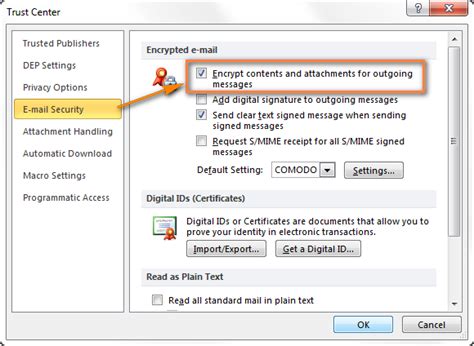
In conclusion, encrypting Outlook emails is a crucial step in maintaining confidentiality and security in today's digital landscape. By utilizing built-in encryption features, such as S/MIME and Office 365 Message Encryption, and exploring third-party add-ins and plugins, individuals and organizations can safeguard sensitive information and protect themselves from cyber threats.
What is email encryption, and why is it important?
+Email encryption is the process of converting plaintext into unreadable ciphertext to protect it from unauthorized access. It is essential for maintaining confidentiality and security, especially when sending sensitive information via email.
How do I enable S/MIME encryption in Outlook?
+To enable S/MIME encryption in Outlook, obtain a digital certificate from a trusted certificate authority (CA), install the digital certificate on your computer, and configure Outlook to use the digital certificate for encryption.
What is the difference between PGP and TLS encryption?
+PGP encryption uses public-key cryptography to secure emails, while TLS encryption provides end-to-end encryption for emails in transit. Both methods offer different levels of security and flexibility, and the choice of encryption method depends on the specific needs and requirements of the user.