Locking your PC is an essential security measure to protect your personal and sensitive information from unauthorized access. Whether you're stepping away from your desk or putting your computer to sleep, locking your PC ensures that your data remains secure. In this article, we'll explore five ways to lock your PC, each with its own unique benefits and scenarios where they might be particularly useful.
Key Points
- Windows Key + L: A quick and easy method to lock your PC immediately.
- Start Menu: Accessing the lock option through the Start menu provides a straightforward approach.
- Ctrl + Alt + Delete: This method offers additional security options beyond just locking your PC.
- Screen Saver: Setting up a screen saver to lock your PC after a period of inactivity adds an extra layer of security.
- Dynamic Lock: For users with Bluetooth devices, Dynamic Lock provides a convenient and automated way to lock your PC when you're away.
Method 1: Windows Key + L
The fastest way to lock your PC is by using the Windows key + L shortcut. This method is universally applicable across all versions of Windows and is the most straightforward way to ensure your PC is locked when you’re not around. Simply press the Windows key and the L key simultaneously, and your PC will immediately lock, requiring your password or PIN to unlock it again.
Benefits of Windows Key + L
This method is beneficial for its speed and ease of use. It’s a muscle memory action for many Windows users, allowing for quick security when needed. Moreover, it doesn’t require navigating through menus, making it the most efficient way to lock your PC in a hurry.
Method 2: Start Menu

Another intuitive way to lock your PC is through the Start menu. By clicking on the Start button, then on your profile picture or icon, you’ll find the option to lock your PC. This method is slightly longer than using the Windows key + L but still straightforward and accessible.
Accessibility of the Start Menu Method
This approach is particularly useful for those who prefer using the mouse over keyboard shortcuts or for situations where the keyboard is not readily available. It also serves as a good alternative for users who might not be familiar with or prefer not to use shortcuts.
Method 3: Ctrl + Alt + Delete
Pressing Ctrl + Alt + Delete brings up the Security Options window, where you can select to lock your PC among other security and power options. This method is not only useful for locking your PC but also provides access to additional security features such as changing your password, logging off, or shutting down/restarting your computer.
Security Options Beyond Locking
The Ctrl + Alt + Delete method is valuable because it offers more than just the lock function. It’s a central hub for managing your PC’s security and power state, making it a versatile option for users who need quick access to these features.
Method 4: Screen Saver
Setting up a screen saver to lock your PC after a specified period of inactivity is a passive yet effective way to ensure your computer is secure when not in use. This can be particularly useful in shared workspaces or homes where others might have access to your computer.
Configuring Screen Saver Settings
To set up a screen saver, go to your Display Settings, find the Screen Saver section, and select the option to “On resume, display logon screen.” This ensures that after the screen saver activates, your PC will require your login credentials to access it again, adding an extra layer of security.
Method 5: Dynamic Lock
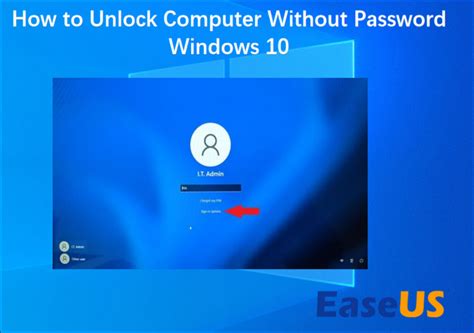
For users with Bluetooth devices paired to their PC, such as smartphones, Windows offers a feature called Dynamic Lock. This feature allows you to automatically lock your PC when you’re away, based on the proximity of your paired Bluetooth device. To set it up, go to Settings > Accounts > Sign-in options, and under “Dynamic lock,” check the box that says “Allow Windows to automatically lock your device when you’re away.”
Convenience and Security with Dynamic Lock
Dynamic Lock combines convenience with security, providing a hands-off approach to locking your PC. It’s particularly useful for mobile workers or those in shared office spaces who might frequently move away from their desks.
| Lock Method | Description | Benefit |
|---|---|---|
| Windows Key + L | Instant lock via keyboard shortcut | Speed and efficiency |
| Start Menu | Lock option through user profile | Accessibility and intuitiveness |
| Ctrl + Alt + Delete | Security options including lock | Versatility and additional security features |
| Screen Saver | Automatic lock after inactivity | Passive security for shared spaces |
| Dynamic Lock | Automatic lock based on Bluetooth device proximity | Convenience and automated security |
What is the fastest way to lock my PC?
+The fastest way to lock your PC is by using the Windows key + L shortcut. This method is immediate and doesn't require navigating through menus.
How do I set up Dynamic Lock on my PC?
+To set up Dynamic Lock, go to Settings > Accounts > Sign-in options, and under "Dynamic lock," check the box that says "Allow Windows to automatically lock your device when you're away." Ensure your Bluetooth device is paired and in range for this feature to work.
Can I use a screen saver to lock my PC after a period of inactivity?
+Yes, you can set up a screen saver to lock your PC. Go to your Display Settings, find the Screen Saver section, and select the option to "On resume, display logon screen." This will require your login credentials to access your PC again after the screen saver activates.
In conclusion, securing your PC is a critical aspect of protecting your digital life, and locking your computer is the first line of defense. By understanding and utilizing the various methods available to lock your PC, you can ensure your data and privacy are safeguarded against unauthorized access. Whether you’re looking for speed, convenience, or an additional layer of security, there’s a locking method that fits your needs and preferences.