Adding page numbers to a PDF document is a straightforward process that can be accomplished in various ways, depending on the software or tools you have at your disposal. Whether you're working with Adobe Acrobat, Microsoft Word, or other PDF editing software, incorporating page numbers into your PDFs can enhance readability, organization, and overall user experience. Below, we'll explore five common methods for adding page numbers to PDF documents, each tailored to different software and user preferences.
Method 1: Using Adobe Acrobat
Adobe Acrobat is one of the most powerful tools for working with PDFs, offering comprehensive features for editing, converting, and managing PDF documents. Adding page numbers with Adobe Acrobat is a simple, step-by-step process:
- Open your PDF document in Adobe Acrobat.
- Navigate to the “Tools” pane and select “Edit PDF.”
- Click on the “Header & Footer” tool in the right-hand pane.
- In the “Add Header & Footer” dialog box, click on the “Page Number” dropdown menu and select your preferred page numbering style.
- Customize the appearance and position of the page numbers as needed, and then click “OK” to apply the changes.
Customizing Page Numbers in Adobe Acrobat
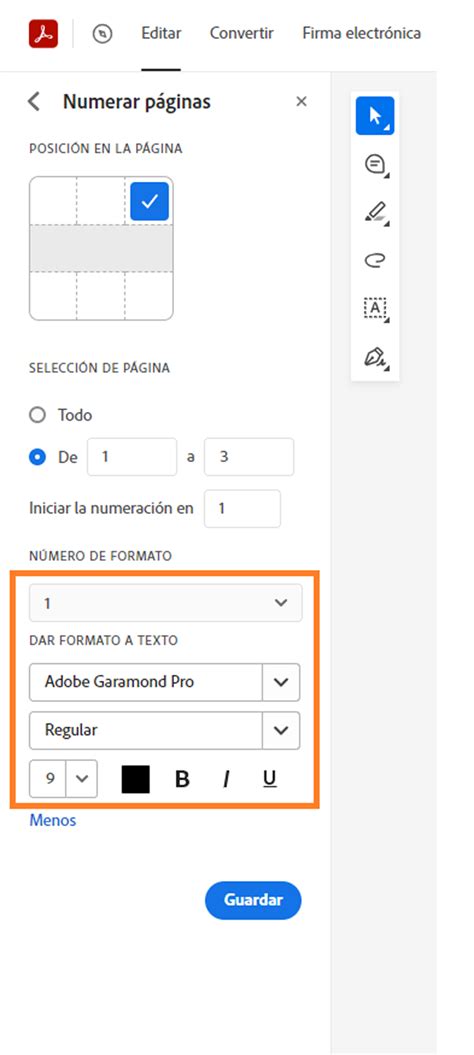
One of the benefits of using Adobe Acrobat for adding page numbers is the high degree of customization it offers. You can not only choose the font, size, and color of the page numbers but also decide on their placement, whether at the top or bottom of the page, and align them to the left, right, or center. This flexibility ensures that the page numbers integrate seamlessly with your document’s design and layout.
| Feature | Description |
|---|---|
| Font Selection | Choose from a variety of fonts to match your document's style. |
| Size Adjustment | Scale the page numbers to be more prominent or discreet as needed. |
| Color Customization | Select a color that complements or contrasts with your document's theme. |
Method 2: Using Microsoft Word
For those who prefer working within the Microsoft ecosystem, adding page numbers to a PDF generated from Word is equally straightforward. Since Word documents are often the source material for PDFs, incorporating page numbers at this stage can streamline your workflow:
- Open your document in Microsoft Word.
- Go to the “Insert” tab on the ribbon.
- Click on “Page Number” and select your preferred position and style.
- Customize the page number format as needed.
- Save your document as a PDF, ensuring the page numbers are included.
Benefits of Adding Page Numbers in Word
Adding page numbers in Microsoft Word before converting your document to a PDF offers several benefits. It allows for a more integrated approach to document design, where page numbers can be considered as part of the overall layout from the outset. Additionally, making changes to the page numbering in Word is generally easier than in a PDF editor, as it leverages Word’s intuitive interface and formatting tools.
Key Points for Adding Page Numbers
- Consider the document's purpose and audience when selecting a page numbering style.
- Ensure consistency in page numbering throughout the document.
- Customize the appearance of page numbers to match the document's design.
- Verify that page numbers are correctly positioned and visible.
- Save a copy of your document before converting it to a PDF to preserve editability.
Method 3: Using SmallPDF
SmallPDF is an online tool that offers a range of PDF editing and conversion services, including the ability to add page numbers. This method is particularly useful for those who prefer cloud-based solutions or need to make quick adjustments to PDFs without installing software:
- Visit the SmallPDF website and select the “Add Page Numbers” tool.
- Upload your PDF document to the platform.
- Choose your preferred page numbering style and customize as needed.
- Download the edited PDF with the added page numbers.
Advantages of Cloud-Based Solutions
Cloud-based tools like SmallPDF offer the advantage of accessibility and convenience. They can be used from any device with an internet connection, eliminating the need for software installations or updates. This approach is ideal for collaborative work or when working with PDFs on the go, as it allows for easy sharing and access to documents.
| Cloud-Based Tool | Features |
|---|---|
| SmallPDF | Add page numbers, merge PDFs, convert formats, and more. |
| Other Tools | Varying features depending on the platform, including editing, signing, and security options. |
Method 4: Using PDF-XChange Editor
PDF-XChange Editor is a powerful PDF editing software that offers advanced features for managing and customizing PDF documents, including the addition of page numbers. Its interface is designed to be user-friendly, making it accessible to both novice and experienced users:
- Open your PDF in PDF-XChange Editor.
- Navigate to the “Edit” menu and select “Insert” > “Page Numbers.”
- Configure the page numbering settings according to your needs.
- Apply the changes and save your document.
Customization Options in PDF-XChange Editor
One of the standout features of PDF-XChange Editor is its robust set of customization options. When adding page numbers, users can specify not just the format and appearance but also the exact pages where the numbering should start and end. This level of control is particularly useful for documents with complex structures or those that require non-standard page numbering.
Method 5: Using Online2PDF
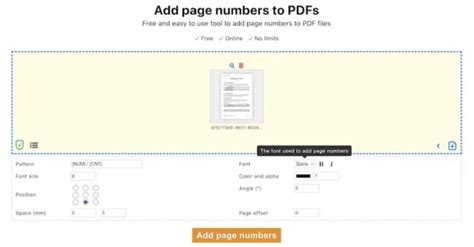
Online2PDF is another online platform that allows users to add page numbers to their PDF documents without the need for any software installation. It’s a straightforward and efficient method for quick edits:
- Go to the Online2PDF website.
- Upload your PDF file.
- Select the “Add Page Numbers” option and choose your preferences.
- Download the updated PDF.
Security Considerations for Online Tools
When using online tools to edit PDFs, it’s crucial to consider the security and privacy of your documents. Look for platforms that guarantee the confidentiality of uploaded files and offer secure downloading options. Many reputable online PDF editors, including Online2PDF, prioritize user data protection, making them safe choices for most document editing needs.
What is the easiest way to add page numbers to a PDF?
+The easiest method often depends on the software you have available. For most users, adding page numbers during the document creation phase in a word processor like Microsoft Word is the most straightforward approach. However, for existing PDFs, using a dedicated PDF editor or an online tool can be quick and effective.
Can I add page numbers to a PDF without any software?
+Yes, there are online tools and platforms that allow you to add page numbers to a PDF without installing any software. These services are web-based and can be accessed from any device with an internet connection.
How do I ensure my page numbers are correctly formatted?
+To ensure correct formatting, consider the purpose of your document, its intended audience, and any specific requirements for page numbering (such as those for academic or legal documents). Use the customization options provided by your chosen method to align the page numbers with your document's style and layout.
In conclusion, adding page numbers to a PDF document can significantly enhance its usability and professional appearance. Whether you opt for a comprehensive PDF editor like Adobe Acrobat, leverage the capabilities of Microsoft Word, or prefer the convenience of online tools, there’s a method to suit every need and workflow. By considering the specific requirements of your document and selecting the most appropriate tool for the task, you can efficiently add page numbers and improve the overall quality of your PDFs.