Clearing cookies in Google Chrome is a straightforward process that can help you maintain your online privacy and resolve issues related to website data. Cookies are small files that websites store on your device to remember your preferences, login information, and other data. Over time, these files can accumulate and potentially compromise your browsing experience. In this article, we will guide you through the steps to clear cookies in Chrome, ensuring you understand the process and its implications.
Understanding Cookies and Their Purpose
Cookies play a crucial role in enhancing your web browsing experience. They allow websites to remember your settings, such as language preferences, and keep you logged in to your accounts. However, cookies can also be used to track your browsing behavior, which may raise privacy concerns. Clearing cookies can help you remove this tracking data and start fresh. It’s essential to note that clearing cookies will log you out of most websites and may reset some of your preferences.
Why Clear Cookies?
There are several reasons why you might want to clear cookies in Chrome. These include improving your privacy by removing tracking cookies, resolving issues with websites that are not functioning correctly due to corrupted cookie data, and freeing up storage space on your device. Additionally, if you’re using a shared computer or plan to sell your device, clearing cookies is a good practice to protect your personal information.
| Cookie Type | Description |
|---|---|
| First-party cookies | Set by the website you're visiting, used for preferences and logins. |
| Third-party cookies | Set by other websites, often used for tracking and advertising purposes. |
Step-by-Step Guide to Clearing Cookies in Chrome
To clear cookies in Chrome, follow these steps:
- Open Google Chrome on your computer.
- Click on the three vertical dots in the upper right corner of the browser window.
- From the dropdown menu, select "More tools" and then "Clear browsing data".
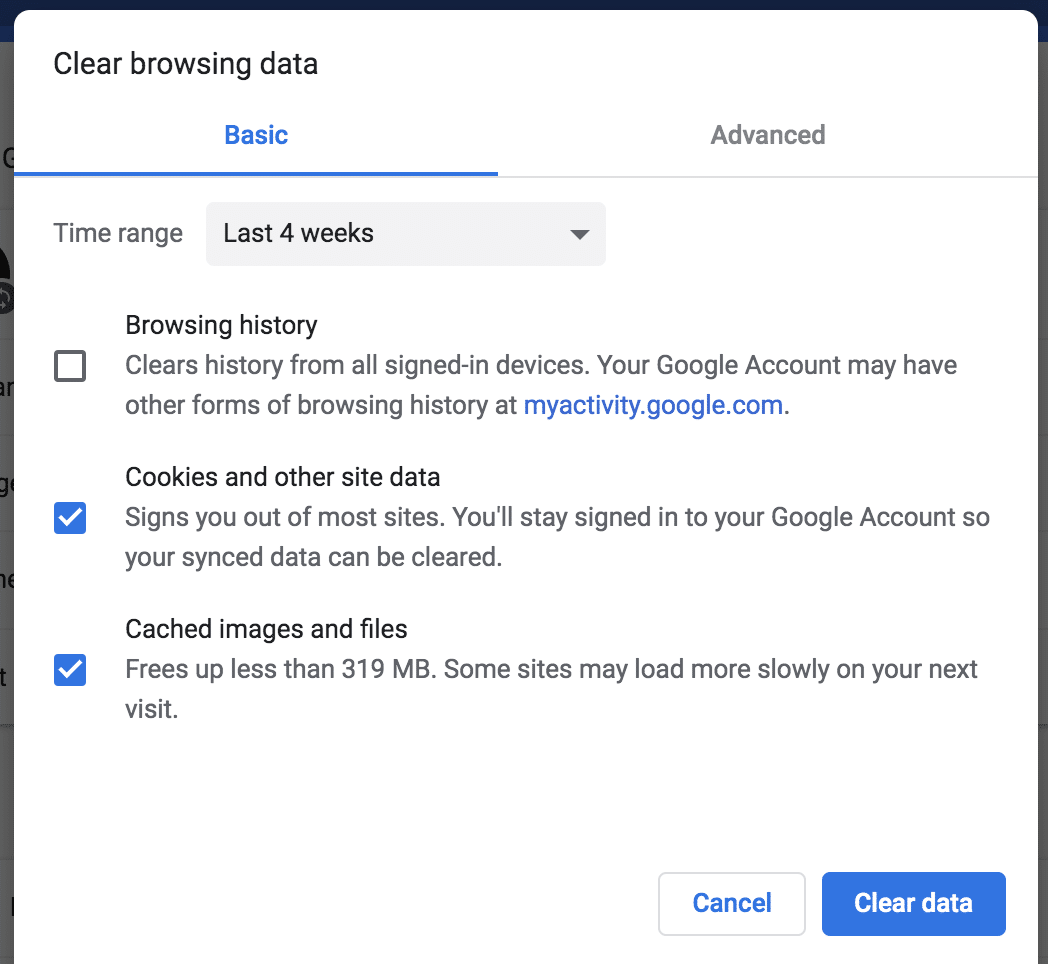
- In the Clear browsing data window, select the types of data you want to delete, including "Cookies and other site data". You can also choose the time range for which you want to delete the data.
- Click on "Clear data" to confirm your selection and clear the cookies.
Alternative Method: Using Chrome Settings
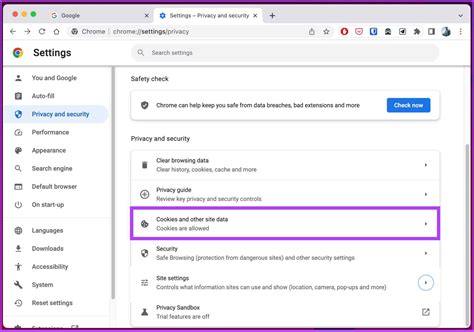
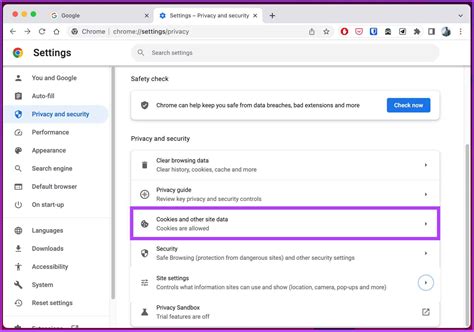
An alternative way to clear cookies is through the Chrome settings. You can access the settings by typing chrome://settings/ in the address bar and pressing Enter. Then, click on “Privacy and security” on the left sidebar, and select “Clear browsing data”. This method allows you to access more detailed settings and options for managing your browsing data.
Key Points
- Clearing cookies can improve your online privacy by removing tracking data.
- It can resolve issues with websites that are not functioning correctly due to corrupted cookie data.
- Clearing cookies will log you out of most websites and may reset some preferences.
- First-party cookies are used for preferences and logins, while third-party cookies are often used for tracking.
- Regularly clearing cookies can help maintain your browsing experience and protect your personal information.
In conclusion, clearing cookies in Chrome is a simple yet effective way to manage your online privacy and maintain a healthy browsing experience. By understanding the purpose of cookies and how to clear them, you can better control your personal data and ensure a more secure internet experience.
Will clearing cookies affect my browsing experience?
+Yes, clearing cookies can affect your browsing experience. You will be logged out of most websites, and some preferences may be reset. However, this is a minor inconvenience compared to the benefits of improved privacy and potential resolution of website issues.
How often should I clear cookies?
+The frequency of clearing cookies depends on your browsing habits and privacy concerns. If you're concerned about privacy, you might consider clearing cookies regularly, such as every week or two. However, if you're not concerned about tracking, you might only need to clear cookies occasionally, such as when you encounter issues with a website.
Can I selectively clear cookies for specific websites?
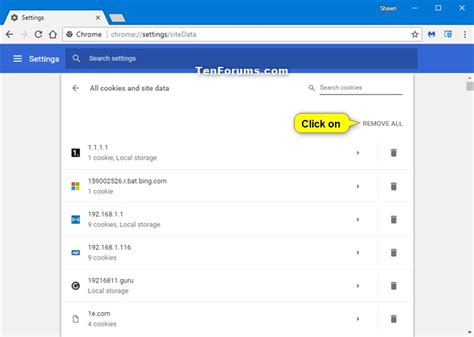
+Yes, Chrome allows you to clear cookies for specific websites. To do this, go to the Chrome settings, click on "Privacy and security", then "Site settings", and select "Cookies and site data". Here, you can see a list of all the websites that have stored cookies on your device and manually remove them.
Meta Description: Learn how to clear cookies in Google Chrome to improve your online privacy and resolve website issues. Follow our step-by-step guide to understand the process and its implications.