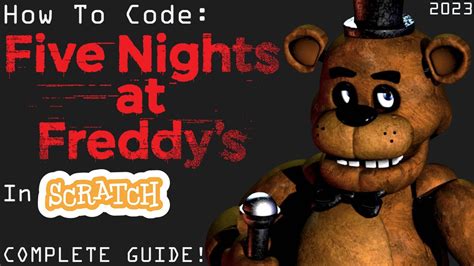
The world of Five Nights at Freddy's (FNAF) has captivated gamers for years with its unique blend of horror and strategy. For those looking to create their own FNAF experiences, Scratch offers an accessible platform for game development. Scratch, developed by MIT, is a free online platform that allows users to create their own games, animations, and stories without prior coding knowledge. In this guide, we will delve into the process of creating a basic FNAF game using Scratch, focusing on the core mechanics and providing a foundational understanding for further expansion.
Understanding the Basics of Scratch
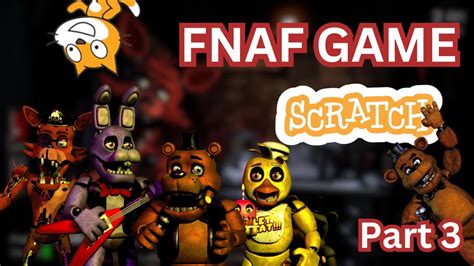
Before diving into creating a FNAF game, it’s essential to have a basic understanding of how Scratch works. Scratch uses a block-based programming system, where commands are represented as colorful blocks that can be stacked together to create scripts. These scripts tell the game characters, known as “sprites,” what actions to perform. The Scratch interface is divided into several sections, including the Stage, Sprite List, and Scripts tab, where most of the game development will take place.
Setting Up the Game Environment
To start creating your FNAF game, you’ll need to set up the game environment. This involves creating the game stage, which will represent the security office in a typical FNAF setting. You can customize the stage by uploading a background image that resembles the security office from the FNAF series. Next, you’ll need to create sprites for Freddy, Bonnie, Chica, and Foxy, the main antagonists of the series. You can either draw these characters using Scratch’s paint editor or upload images of them.
| Sprite | Role in Game |
|---|---|
| Freddy | Main antagonist that will move around the stage and attempt to enter the security office. |
| Bonnie | Supporting antagonist with similar behaviors to Freddy but possibly with unique movements or attack patterns. |
| Chica | Another supporting antagonist with her own behaviors and movements. |
| Foxy | A fast and aggressive antagonist that requires quick reflexes to defend against. |
Implementing Game Mechanics
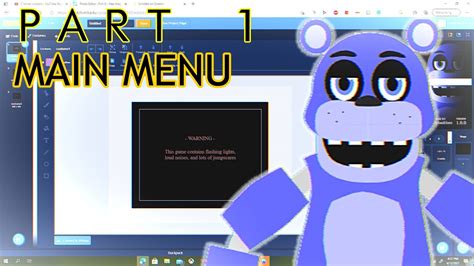
The core mechanic of any FNAF game involves monitoring the office’s doors, lights, and other systems to prevent the animatronics from entering. In Scratch, you can implement these mechanics by creating scripts for each sprite (animatronic) that allow them to move around the stage, check if they are near the office doors, and trigger an “attack” if they manage to enter. The player must then use keyboard inputs to close doors, turn on lights, or use other defensive measures to prevent the animatronics from entering the office.
Adding Interactivity
To make the game interactive, you’ll need to add scripts that allow the player to control the game’s defensive systems. This can be achieved by using the “When key pressed” blocks in Scratch to trigger specific actions, such as closing a door or turning on a light, when the player presses a certain key. Balancing the game’s difficulty by adjusting the animatronics’ speed, the player’s power supply, or the time of night can add depth to the gameplay.
Key Points
- Understand the basic mechanics of Scratch and how to navigate its interface.
- Design and implement the game environment, including the stage and character sprites.
- Develop scripts for the animatronics' behaviors, including movement and attack triggers.
- Create interactive elements controlled by the player to defend against the animatronics.
- Balance the game's difficulty to ensure an engaging yet challenging experience.
Enhancing the Game Experience
Once you have the basic mechanics in place, you can enhance the game experience by adding more features. This could include implementing a night system where the difficulty increases as the nights progress, adding more animatronics or defensive systems, or even creating a scoring system based on how many nights the player survives. Sound effects and music can also significantly enhance the atmosphere of the game, making it more immersive and engaging.
Advanced Scripting Techniques
For those looking to take their game to the next level, advanced scripting techniques can be employed. This might involve using variables to keep track of the game state, such as the current night or the player’s remaining power, or using conditional statements to create more complex behaviors for the animatronics. By experimenting with different scripts and techniques, you can add a high level of complexity and replayability to your game.
How do I make my animatronics move realistically in Scratch?
+To make your animatronics move realistically, you can use the "glide" block to make them move smoothly across the stage. You can also use conditional statements to change their direction or speed based on their position or other factors.
Can I add custom sound effects to my FNAF game in Scratch?
+Yes, Scratch allows you to upload custom sound effects to enhance your game. You can use these sounds to create a more immersive experience, such as adding the sound of doors creaking or the animatronics' distinctive noises.
Creating a FNAF game in Scratch is a fun and educational project that can help you develop your programming skills and creativity. By following the steps outlined in this guide and experimenting with different scripts and features, you can create a unique and engaging game that captures the essence of the FNAF series. Remember, the key to making a great game is to keep it simple, yet challenging, and to always be open to new ideas and improvements.